

What you will learn
- How to create a new Agent from the dashboard
- How to add Text and Q&A Knowledge Sources
- How to start training and test the result
- How to prepare the Web Channel for launch
Before you start
Sign in to the Agenvik dashboard and open Agents from the sidebar. If your workspace has reached its active agent limit, archive an unused agent or review your subscription before creating another one.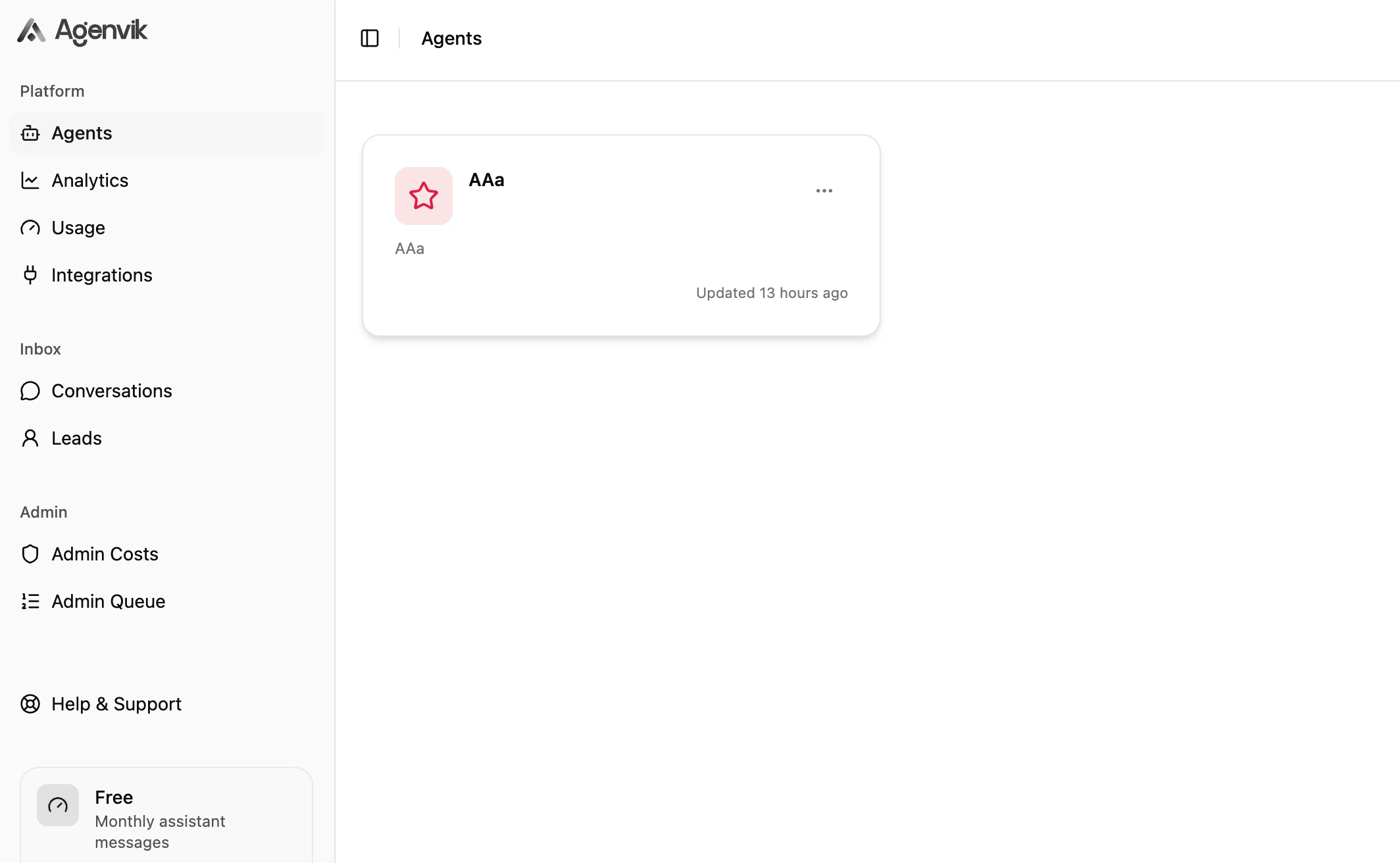
Step 1: Create an Agent
- Open Agents.
- Click the create button in the page header.
- Enter a clear agent name, such as
Sales Support AgentorProduct FAQ Agent. - Save the Agent.
Step 2: Add Knowledge Sources
Open the Agent and find Knowledge Sources. Agenvik currently supports:- Text: free-form content, policies, instructions, product notes, or FAQs written as rich text.
- Q&A: structured question-and-answer pairs for exact responses and common customer questions.
Step 3: Train the Agent
After at least one Knowledge Source is ready, click Train. Agenvik queues ready sources and indexes them for the Agent.
Step 4: Tune Behaviour
Use Behaviour to define how the Agent should answer.- System Prompt: the Agent’s role and core instructions
- Tone: friendly, professional, or neutral
- Verbosity: short, balanced, or detailed
- Fallback Message: what the Agent says when it cannot answer
- Guardrails: boundaries for topics, claims, or escalation rules
Step 5: Configure the Web Channel
Use Channel to control the web chat experience. Set the display name, subtitle, welcome message, input placeholder, and primary color.
Step 6: Review the Agent
Before you share the Agent, ask test questions that reflect real visitors:- A simple question directly covered by a Knowledge Source
- A question with multiple possible meanings
- A question outside your business scope
- A lead-intent question, if Lead Generation is enabled
Next steps
Improve answer quality
Learn practical ways to improve knowledge, behaviour, and testing.
Install the web widget
Add the Agent to your website once it is ready for visitors.